The Setup
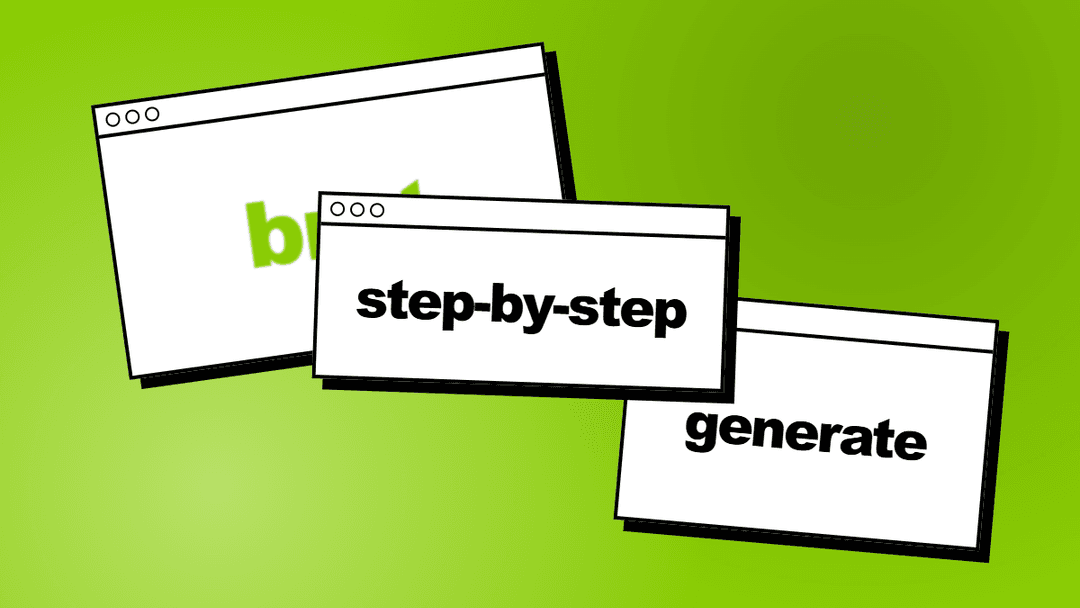
Learning how to make brat text is incredibly straightforward when you use the right tools. With a dedicated brat text generator, the entire process takes under 30 seconds from typing your phrase to saving the final image.
How to Make Brat Text (Step-by-Step)
Type Phrase
Enter your words directly into the brat text generator. Keep it short, with one to three words working best for this layout.
Color Theme
Neon green is the original standard, but black, white, and pink all work flawlessly. The background will automatically apply high contrast to your text.
Download
Hit the export button to save your file. The PNG exports instantly with no watermark and no account required.
Best Way to Create Brat Text Online
If you want to create brat text online, using an automated generator easily beats trying to do it manually in Photoshop or Canva. A specialized tool has the exact letter spacing, custom blur effect, and authentic background colors preset so you cannot mess it up. You can find the best tool for this exact purpose at the /brat-text-generator page.
Tips for Better Brat Text & Common Mistakes
The Do's
- Keep text lowercase.
- Use 1-3 words maximum.
- Square format (1:1) for Instagram.
- Export at 2048px for sharpness.
- Stick to solid color backgrounds.
The Don'ts
- Too many words (cluttered).
- Wrong aspect ratio for platform.
- Exporting at low resolution.
- Adding too many elements.
- Forgetting it's about reduction.
Choosing the Right Words for Brat Text
The secret to creating impactful brat text lies not just in the visual presentation, but in the curation of the words themselves. The most successful examples of this aesthetic share a common linguistic thread: they are blunt, slightly ironic, and intensely specific. When you open the brat text generator, resist the urge to write a full sentence. The format demands brevity. A single, well-chosen noun or a sharp two-word phrase will always outperform a longer, explanatory caption.
For instance, replacing a lengthy complaint with a single word like "exhausted" or "delusional" instantly elevates the sentiment into a piece of pop art. The lowercase formatting further strips the text of formality, giving it a casual, off-the-cuff energy that feels inherently relatable. This is why the brat aesthetic works so well for reaction images and personal status updates. It mimics the cadence of a text message sent at 3 AM: unfiltered, uncapitalized, and completely honest.
Furthermore, the juxtaposition of a very mundane or serious word against the aggressively loud neon green background creates a built-in comedic tension. It forces the viewer to treat a passing thought with the gravity of an album cover. When making your own, think about the punchline of your joke or the core emotion you are feeling, and try to distill it down to its absolute minimum. The fewer words you use, the larger they will appear on the canvas, and the louder they will visually "scream" at the viewer.
Advanced Brat Text Techniques
While the process of typing and downloading is simple, mastering the aesthetic requires a deeper understanding of digital layout and negative space.
Once you are comfortable with the basic generation process, you can start experimenting with advanced techniques to make your text stand out even more. One powerful method is manipulating the letter spacing (kerning) to extreme degrees. While the default setting mimics the tight, condensed look of the original album, intentionally widening the spacing can create a more airy, fashion-forward editorial look, while crushing the letters together until they overlap creates a chaotic, claustrophobic energy perfect for expressing anxiety or overwhelm. Similarly, playing with the aspect ratio changes the context of the image. While a 1:1 square is standard for Instagram, generating a 9:16 vertical image with the text forced entirely to the bottom edge creates massive amounts of heavy, empty green space above it, forcing the viewer's eye to travel down the screen and building visual suspense. You can also experiment with line breaks. Instead of letting the text auto-wrap, force manual line breaks to stack words in unnatural, blocky formations. This breaks the standard rules of typography and leans heavily into the anti-design philosophy that the brat aesthetic celebrates. By understanding these subtle layout tricks, you can push the brat text generator beyond simple meme-making and into genuine digital art creation.
Why Brat Text Works on Social Media
Brat text dominates social feeds because of how aggressively it grabs attention.
The high contrast between bold dark text and a bright neon green or black background makes every post pop instantly, even at thumbnail size. Short, punchy phrases of one to four words perform significantly better than longer sentences because they can be read in under a second while scrolling. TikTok, Twitter/X, and Instagram Stories are the primary platforms where brat text thrives, as all three reward bold, eye-catching visuals that communicate a mood or reaction immediately. The lo-fi, slightly blurry aesthetic also feels far more authentic and personal than polished designs made with traditional tools. That rawness is part of what makes the format so shareable, as people trust content that looks like it was made in five seconds over something that took an hour in a design suite. The brat format also works at every screen size, from a tiny comment reply to a full-screen story takeover. If you want to create your own, the brat text generator handles the styling automatically so your output always looks right.
Common Mistakes When Making Brat Text
The most frequent mistake is cramming too many words into the image.
Brat text works best with one to four words, as anything longer dilutes the visual impact and makes the text harder to read at a glance. Another common error is choosing a font size that is too small. The entire point of the format is that the text fills the frame and demands attention, so going too small defeats the purpose entirely. Overloading the design with effects, borders, or extra graphic elements is equally counterproductive, since the brat aesthetic is defined by its minimalism, so resist the urge to add more. Using the wrong aspect ratio for the platform is another easy mistake: a square crop works for Instagram posts, while TikTok needs 9:16 vertical. Finally, saving your image as a JPG instead of PNG introduces compression artifacts that muddy the sharp text edges and degrade the clean background color. Always export as PNG to preserve the crisp, high-contrast look that makes brat text instantly recognizable across every platform.
Frequently Asked Questions
Open the brat text generator, type your phrase, adjust the font size, and download your PNG. No signup required.
The brat aesthetic uses a blurry, condensed sans-serif style inspired by the Charli XCX album cover. The exact font is not publicly released.
Yes. The brat text generator is completely free with no watermark and no account needed.